


If your blog has not yet been indexed by the three major search engines (Google, Yahoo and Bing), then it’s time to stop waiting and be proactive -submit your blog to them! Submission will increase your blog chances of being indexed the next time they crawl the web. Submission is free and is very easy to do.
Checking whether your blog is indexed
Before submitting your blog, you might want to do a “site search” to check its status (whether your blog is indeed has not been indexed yet). Enter this search query in the search box:
site:domainReplace
domain with your domain name, for example for a blogspot blog entersite:yourblogname.blogspot.com.If the search produces no results, then go ahead with the submission. (If your blog has already been indexed, this search will return a list of all your indexed blog pages).
Use the same query for all three search engines.

Now let’s start submitting:
1. Submit blog to Google
- Go to Google site submission page.
- Fill in your blog homepage url and enter comments (optional).
- Enter the captcha, then click Add URL button.

2. Submit blog to Yahoo!
- Go to Yahoo Site Explorer Website submission page.
- Sign in with a Yahoo ID.
- Click on Submit a Website or Webpage link.
- Enter your blog url (the homepage’s url) and click Submit URL button.Note: You can also submit individual webpages (post pages) if you discovered certain pages are left out from Yahoo search index.


3. Submit blog to Bing
- Go to Bing URL submission page.
- Enter the captcha.
- Enter your blog homepage URL and click Submit URL button.

Now having submitted your blog to the search engines, you might also want tosubmit it to DMOZ (Open Directory Project).
Enjoy!
1. Speed tester
Check web page size and load time.
2. Backlink checker
Check backlinks to your domain or web page.
3. Reciprocal link checker
Check whether your link partner is still linking back to your site.
4. Broken link checker
Check for broken links in your web page.
5. Meta tag checker
Extract your web page's meta information and tags.
You can add, remove or rename labels without entering into each individual post. You don’t have to do it post by post, it can be done across multiple posts, in one go.
Update Sep. 2011: Add instructions for new user interface.
To do this, go to Dashboard > Edit Posts tab. Notice all the labels used in your blog are listed on the left side of the screen, under Labels. On the right is the list of your blog posts. Each post has a checkbox next to it.

Adding a label
To add a label:
- Select the posts you want to apply the label to by ticking the checkboxes.
- Click on Label Actions… dropdown menu, then select New Label... .
- Enter the label in the Enter New Label text box and hit OK.
Removing a label
To remove a label:
- Click on the label (in label list) you want to remove. All posts containing that label will be listed on the right.
- Select all posts by clicking Select All link on the right of Label Actions…dropdown menu.
- Click on Label Actions… dropdown menu, then under Remove Label, select the label to be removed.
Renaming a label
Renaming a label is a combination of adding a new label and removing the original one:
- Click on the label (in the label list) you wish to rename. All posts containing that label will be listed on the right.
- Select all posts.
- Click on Label Actions… dropdown menu, add in the new label .
- Lastly, remove the original label.
- Reminder: Add in a new label first, then remove the original one, as explained above. Don’t do the other way around.
Label actions via new Blogger user interface
The process is basically the same with just a few things moved around.
- On the Dashboard, click the gray Post List icon (that looks like a sheet of paper) next to the blog you want to edit the labels for. It will list out all posts for that blog.
- To filter the list according to specific label, select a label by clicking the All Labelsdropdown menu at the top right corner of the page.
- Adding and removing a label can be performed by clicking the Label icon on the left of the Publish button.


Enjoy!
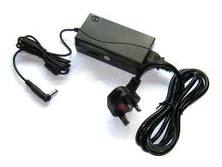
How to troubleshoot laptop battery charging problems
Problem 1: Laptop detects the battery but shuts off when AC adapter unplugged. When you move the cursor arrow over the battery icon while the laptop is connected to AC adapter, it show the remaining battery charge and says “charging”. The batter power meter utility (if available) also shows that battery is connected and charging. But… as soon as you unplug the AC adapter, the laptop shuts off completely.
Possible Reasons:
1. The battery not seated correctly. Try reconnecting the battery.
2. The battery contacts got dirty or oxidized and the battery is not making good connection with the motherboard. Try reconnecting the battery a few times.
3. If reconnecting the battery doesn’t help, most likely the battery is bad and has to be replaced.
4. If you replaced the battery but the problem still exists, this is motherboard related failure. Apparently the battery charging circuit has failed. In this case the whole motherboard has to be replaced (or repaired on component level).
Problem 2: The battery not detected by the laptop. The battery is installed and you know it’s connected correctly but there is a red cross on the battery icon. If you move the cursor arrow over the battery icon, it says “no battery detected”.
Possible Reasons:
1. Most likely the battery is bad. You have a very good chance to fix this problem by replacing the battery.
2. If replacing the battery doesn’t help, this is motherboard related failure. The motherboard has to be replaced (or repaired on component level).
Problem 3: The battery discharges very quickly after it reaches some critical point. The battery detected by the laptop and charges properly to 100%. When you unplug the AC adapter, it take normal time to discharge until some critical point (let’s say 80%) but after that the battery discharges very quickly to 0%.
Possible Reasons:
This is battery related failure. The battery is bad and has to be replaced.
Problem 4: The battery charges only if the power plug positioned correctly. You have to wiggle the power plug in order to charge the battery. After you find the right position, the battery charges properly.
Possible Reasons:
1. AC adapter failure. The AC adapter power cable is damaged. You can test your AC adapter with a voltmeter.
2. If the AC adapter works fine, most likely this is power jack (connector where you plug power adapter) failure. In this case the power jack has to be replaced.
In some laptop models the power jack is not soldered to the motherboard, it’s attached to a power harness.
In this case, you can unplug the failed power jack from the motherboard and replace it with a new one.

- Open Notepad and copy the below code and save as Locker.bat.
- At first time start it will create folder with Locker automatically for you.
- Don't forget to change your password in the code its shown the place where to type your password.
After u copy the Commanding go to the bold words (or try using shortcut- CTRL+F and type password to locate the line) u will find this word : password here (Change it with any password u like.) is
:if NOT %pass%== 12345 goto FAIL
//so your password here becomes 12345 .//
//so your password here becomes 12345 .//
****************************************************************
cls
@ECHO OFF
title Folder Locker
if EXIST "Control Panel.{21EC2020-3AEA-1069-A2DD-08002B303
if NOT EXIST Locker goto MDLOCKER
:CONFIRM
echo Are you sure u want to Lock the folder(Y/N)
set/p "cho=>"
if %cho%==Y goto LOCK
if %cho%==y goto LOCK
if %cho%==n goto END
if %cho%==N goto END
echo Invalid choice.
goto CONFIRM
:LOCK
ren Locker "Control Panel.{21EC2020-3AEA-1069-A2DD-08002B303
attrib +h +s "Control Panel.{21EC2020-3AEA-1069-A2DD-08002B303
echo Folder locked
goto End
:UNLOCK
echo Enter password to Unlock folder
set/p "pass=>"
if NOT %pass%== 12345 goto FAIL
attrib -h -s "Control Panel.{21EC2020-3AEA-1069-A2DD-08002B303
ren "Control Panel.{21EC2020-3AEA-1069-A2DD-08002B303
echo Folder Unlocked successfully
goto End
:FAIL
echo Invalid password
goto end
:MDLOCKER
md Locker
echo Locker created successfully
goto End
:End
****************************************************************
Note:
It not only hides the folder, but hide all files… and try opening it without entering password, it will take you to the control panel. Also, if you want to store files on your Pen-Drive, you can use this script. No Software Required.
In case you delete your Locker file (just in case), then you can make a new one (but with the same password) and open it from that. Alternatively, you can keep this locker file somewhere else, and when you want to open ur folder, only then bring it back to that place.
In case you delete your Locker file (just in case), then you can make a new one (but with the same password) and open it from that. Alternatively, you can keep this locker file somewhere else, and when you want to open ur folder, only then bring it back to that place.
When an application crashes in Windows XP, you may receive a request to send an error report to Microsoft. These requests can become a little annoying. Also, error reports can sometimes include part of a document you were working on when the program crashed and you may feel that sending them compromises your privacy somewhat.
Mind you, sending error reports may actually help Microsoft to produce more stable software in the future. The decision to send error reports is up to the individual. You can decide to send reports on a case-by-case basis, or you can choose to disable the error reporting function completely.
To disable Error reporting:
Right-click the My Computer icon on the desktop or in the Start menu and select "Properties" to open the System Properties window.
Clicked the "Advanced" tab.

Click on the button labelled "Error Reporting" which is located at the bottom right of the System Properties window. The "Error Reporting" window should appear.

Select the item labelled "Disable error reporting". It is advisable to leave a tick in the check box that says "But notify me when critical errors occur".
Click "OK" to exit the "Error Reporting" window and then click "OK" again to exit System Properties.
You should not be asked to send error reports to Microsoft again, but you will still receive error messages that might help with troubleshooting.
To enable error reporting again at a later date, navigate to the "Error Reporting" window as described above and select "Enable error reporting".
Mind you, sending error reports may actually help Microsoft to produce more stable software in the future. The decision to send error reports is up to the individual. You can decide to send reports on a case-by-case basis, or you can choose to disable the error reporting function completely.
To disable Error reporting:
Right-click the My Computer icon on the desktop or in the Start menu and select "Properties" to open the System Properties window.
Clicked the "Advanced" tab.
Click on the button labelled "Error Reporting" which is located at the bottom right of the System Properties window. The "Error Reporting" window should appear.
Select the item labelled "Disable error reporting". It is advisable to leave a tick in the check box that says "But notify me when critical errors occur".
Click "OK" to exit the "Error Reporting" window and then click "OK" again to exit System Properties.
You should not be asked to send error reports to Microsoft again, but you will still receive error messages that might help with troubleshooting.
To enable error reporting again at a later date, navigate to the "Error Reporting" window as described above and select "Enable error reporting".


